ServiceNow Knowledgebase Article: A Simple Guide
Introduction
This Knowledgebase article deals with how a user can create a TheWorxHub request from the ServiceNow Catalogue.
Prerequisites & Dependencies
System Requirements
-
ServiceNow versions - Yokohama and above.
-
Required plugins
-
ServiceNow Integration Hub Enterprise Pack.
-
Flow designer support for the service catalogue, TheWorxHub update set.
-
NOTE Ensure that TheWorxHub app is installed.
User Permissions:
-
Admin/x_briso_theworxhub.admin – For viewing/editing TheWorxHub Properties.
-
Other users with “x_briso_theworxhub.user” role, will be able to see TheWorxHub Request by default.
Initial Set Up
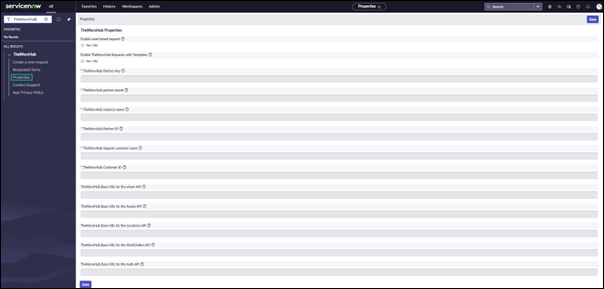
The Properties page allows admins to manage some options in the request form.
-
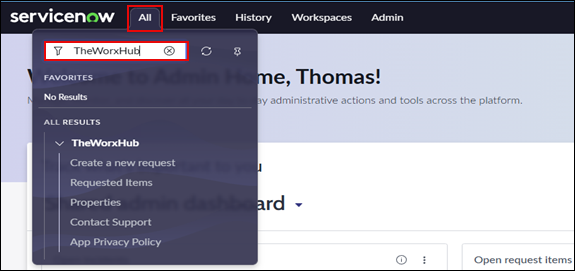
Navigate to ServiceNow Home page and click the All tab.
-
Search for the TheWorxHub then select-Properties under it.
-
Set or change the value of the Properties as required.
NOTE Please contact Brightly to get TheWorxHub information as needed.
-
TheWorxHub app supports two types of work requests: Location-based and Asset-based.
-
By default, the “Enable asset-based request” and “Enable TheWorxHub Requests with Templates” are not selected.
-
Templates are predefined in TheWorxHub to help populate the details section in the request.
-
Click Save to apply changes.
Submitting a Request
Follow the below steps to create a TheWorxHub request.
-
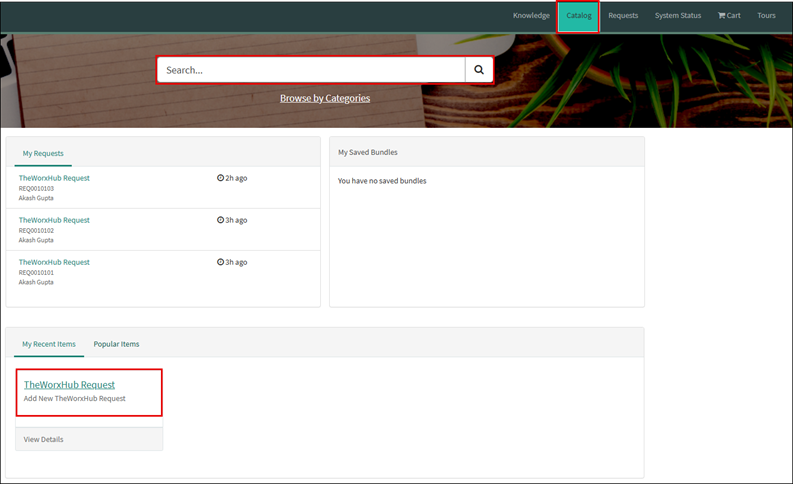
Navigate to the Catalog.
-
Select TheWorxHub Request from the available catalogue items.
NOTE You can use the search bar to find the “TheWorxHub Request”.
Submit a Location-Based Work Request:
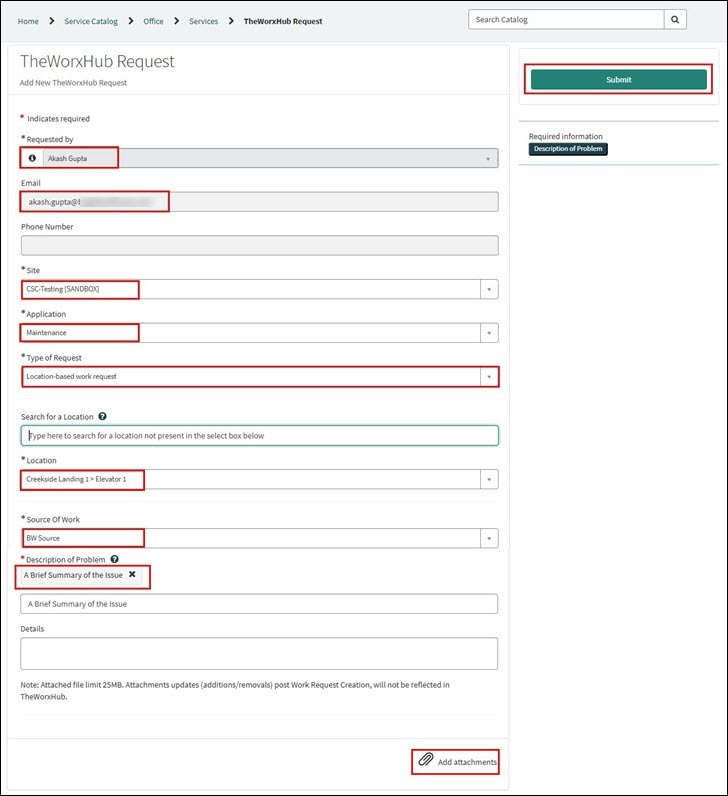
Complete all required fields (marked with an asterisk *):
-
Requested By– Defaulted to person submitting request.
-
Email – Email address of the selected user.
-
Phone Number – Phone number of the selected user.
-
Site – Select the Site of TheWorxHub Request.
-
Application – Select from the drop-down list or use the search field to find the required application.
-
Type of request – Select Location-based work request.
-
Location
-
Select the location for the work request.
-
Use the Search for a Location field if the location is not present in the Location drop-down list.
-
-
Templates (Optional)
-
If a template is selected, the detail section may populate with additional content.
-
-
Source of Work
-
This field appears when the Application is selected.
-
Select an option from the drop-down list or use the search field to find the required source of work. populate this field.
-
You can use the search to find the required source of work.
-
-
Description of Problem – In this field, provide a summary of the issue.
-
Details – Add more details if needed.
-
Attachments (Optional)
-
Attached file limit 25MB.
-
Attachment updates (additions/removals) post Work Request creation will not be reflected in TheWorxHub.
-
-
Click Submit button at the upper-right corner to send your request.
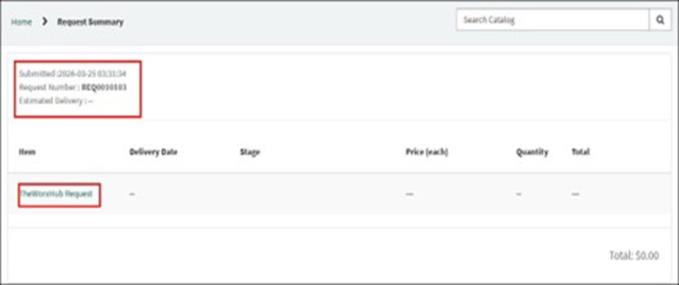
Upon submission, a confirmation page appears with a Request Number.
Submit an Asset-Based Work Request:
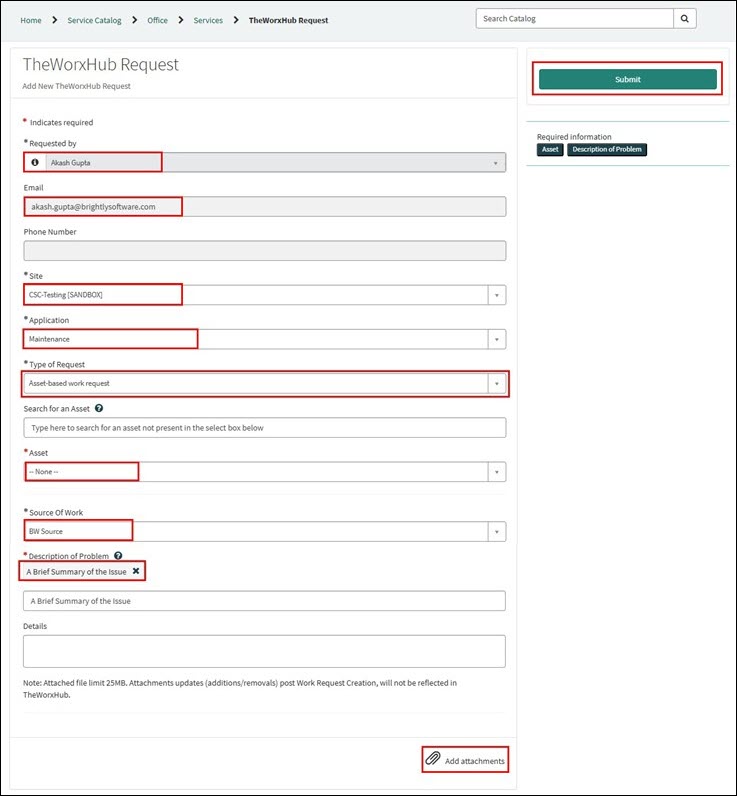
Complete all required fields (marked with an asterisk *):
-
Requested By– Defaulted to a person submitting a request.
-
Email – Email address of the selected user.
-
Phone Number – Phone number of the selected user.
-
Site – Select the Site of TheWorxHub Request.
-
Application – Select from the drop-down list or use search bar to find the required application.
-
Type of request – Select Asset-based work request.
-
Asset
-
Select the asset for the work request.
-
Use the Search for an Asset field if the asset is not present in the Asset drop-down list.
-
NOTE Only assets with an Active status will display in the drop-down list.**
-
Templates (Optional)
-
If a template is selected, the detail section may populate with additional content.
-
-
Source of Work
-
This field appears when the Application is selected.
-
Select an option from the drop-down list or use the search field to find the required source of work.
-
-
Description of Problem – In this field, provide a summary of the issue.
-
Details – Add more details if needed.
-
Attachments (Optional)
-
Attached file limit 25MB.
-
Attachment updates (additions/removals) post Work Request creation will not be reflected in TheWorxHub.
-
-
Click Submit button at the upper-right corner to send your request.
-
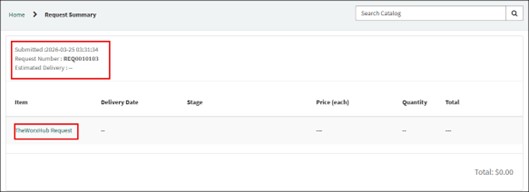
Upon submission, a confirmation page appears with a Request Number.
Reviewing a Request
View List of Created Requests
NOTE Inside the My Request page, the State of the Request does not change based on TheWorxHub status. TheWorxHub status is mapped to the Requested item.
-
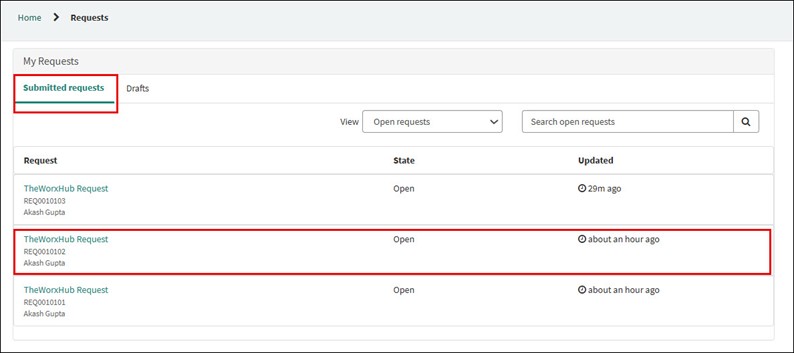
Navigate to the Requests tab.

-
Under Submitted requests tab, view all requests you have created and their status.
-
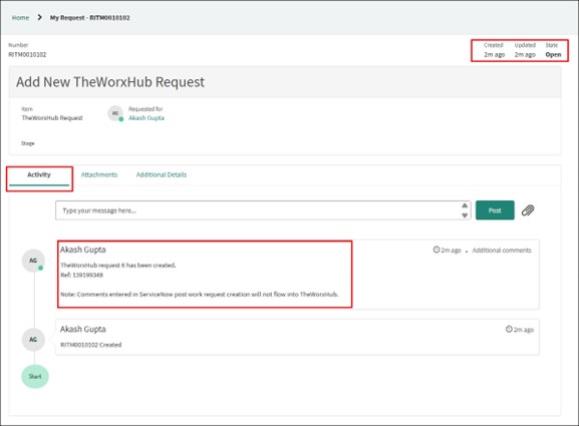
Click the TheWorxHub Request to open the request details page.
-
Review summary, status updates, Attachments, and Additional Details.
Status
| Service Now Status (Requested Item) | TheWorxHub |
| Open |
Request |
| In Progress | In Progress |
| Closed Incomplete | Cancelled |
| Closed Incomplete | Rejected |
| Pending | On Hold |
| Closed Complete | Completed |
NOTE Inside the My Request page, the State of the Request does not change based on TheWorxHub status. TheWorxHub status is mapped to the Requested item.
Search for a Work Request
-
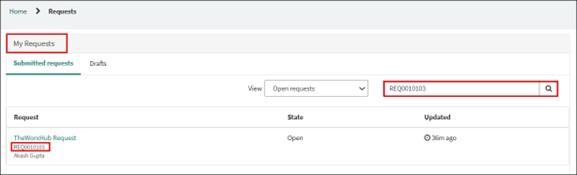
Use the Search Bar at the top of the My Requests list.
-
Enter keywords such as Request Number, Application Name, or Description keyword.
Results update dynamically.